

MFA Enrollment
Overview
Section titled “Overview”Multi-factor authentication (MFA) adds a second verification step when you sign in. You can enrol from the Security Settings page at any time. If your organisation requires MFA, you will be prompted to enrol after your next login.
Enrolling in an Authenticator App (TOTP)
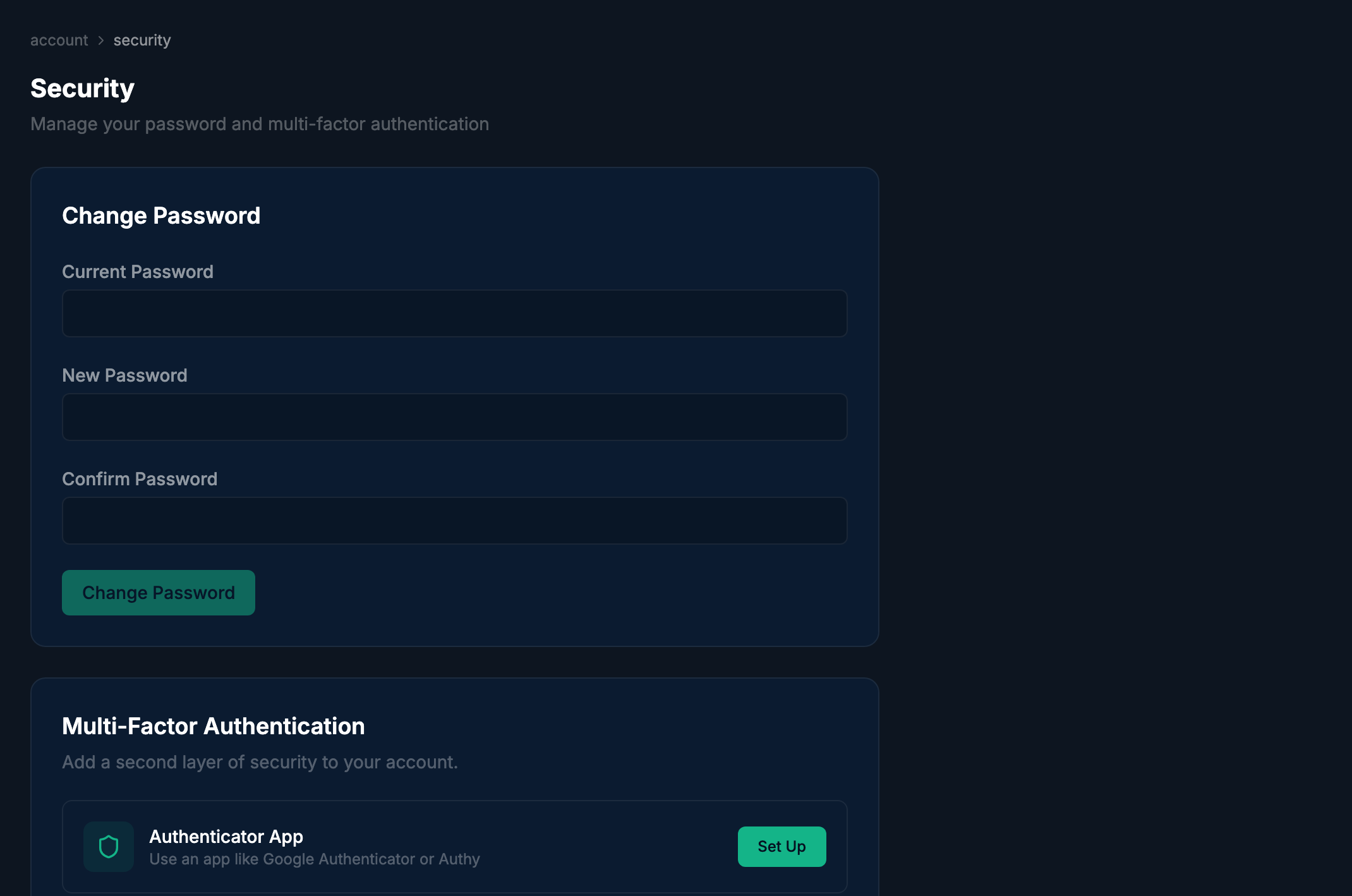
Section titled “Enrolling in an Authenticator App (TOTP)”Navigate to Account > Security. The Multi-Factor Authentication section lists the available methods. Click Enrol next to Authenticator App to begin setup.
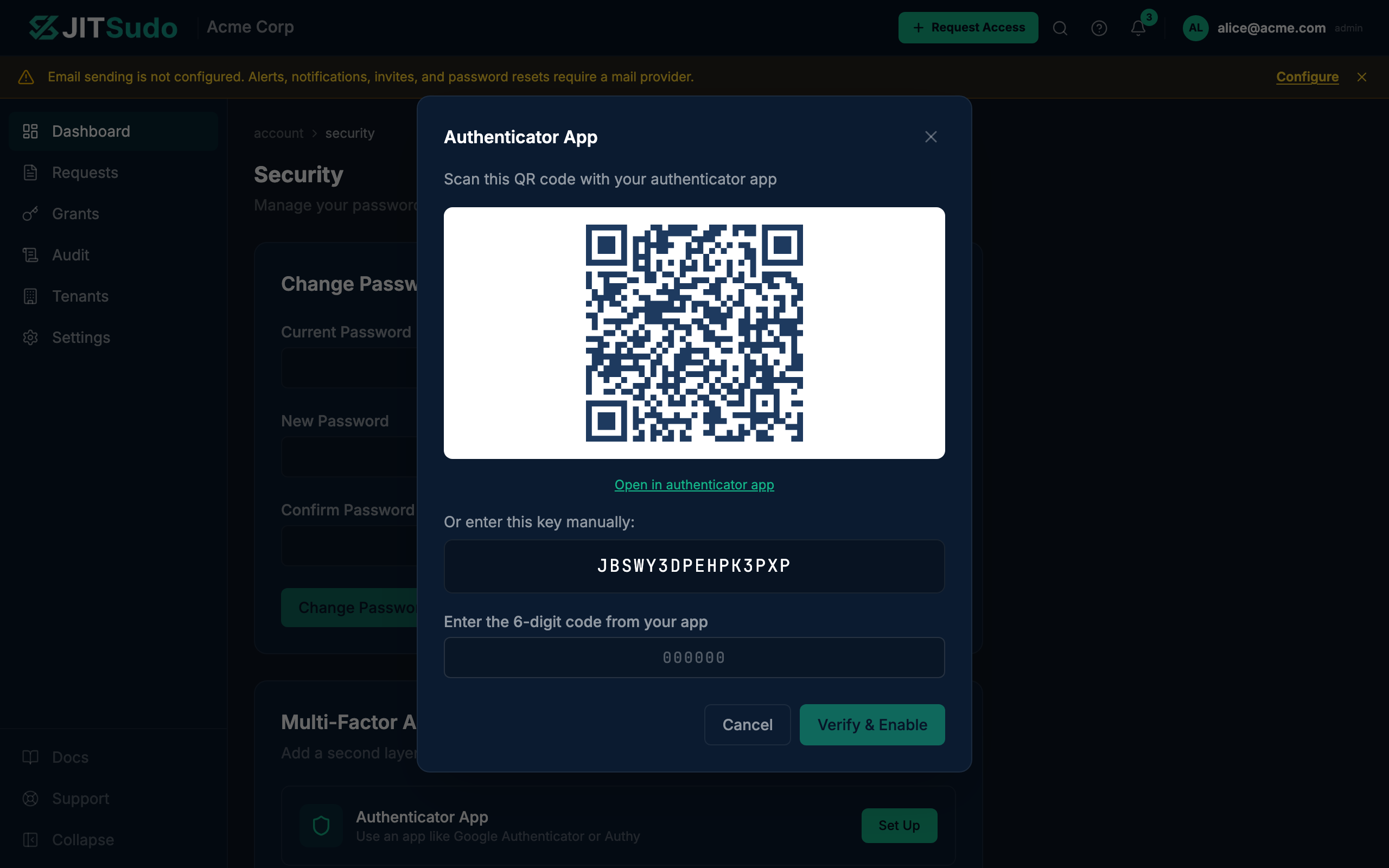
Scan the QR code with your authenticator app (Google Authenticator, Authy, 1Password, etc.). If you cannot scan, copy the manual entry code shown below the QR code. Enter the 6-digit code from your app and click Verify.
Security Key or Passkey (WebAuthn)
Section titled “Security Key or Passkey (WebAuthn)”To enrol a hardware security key or passkey, click Enrol next to Security Key or Passkey in the MFA section. Enter an optional device name (e.g., “Work YubiKey”) to identify the credential later, then click Register. Your browser will prompt you to tap your key or use your device biometrics.
Backup Codes
Section titled “Backup Codes”After enrolling in any MFA method, a Backup Codes section appears. Generate a set of one-time backup codes and store them securely. Each code can only be used once and they are the only way to recover access if you lose your authenticator device or security key.
Related
Section titled “Related”Related guides: